
In Workflow Designer, you can configure the entities section that will be presented on the launch form. You can choose which entities workflow users will see when selecting a counterparty on the launch form.
Entities are not supported in sandbox mode.In Workflow Designer, you can configure the entities section that will be presented on the launch form. You can choose which entities workflow users will see when selecting a counterparty on the launch form.
Entities are not supported in sandbox mode.
Best Practice: Once you have customized the entities section, we recommend walking through Use Entities in Workflows. This article will walk you through how to use entities on launch forms.
Use Case
At Classics Inc., the legal team manages multiple subsidiaries and partner organizations in Ironclad. To streamline contract launches, they configure the entities section in Workflow Designer to control which entities appear when users select a counterparty on the launch form.
By restricting the view to only relevant entities, workflow users can quickly find the correct counterparty, reducing errors, improving launch speed, and ensuring contracts are linked to the appropriate entity records.
For example, Classics Inc. filters the workflow so that users can only select entities that meet specific criteria, such as active vendors approved for the European region or entities with a particular relationship type or status. This ensures that the right counterparties are chosen and that entity data remains clean and compliant.
Permissions
| Features | Workflow Designer, Entities |
| Permissions | Admin role OR Repository and Entities = View, edit, and create access to all Record types and Entity types (current and future) AND Workflow Designer = Ability to create and edit all workflow configurations |
Configure Search for Entities in Launch Forms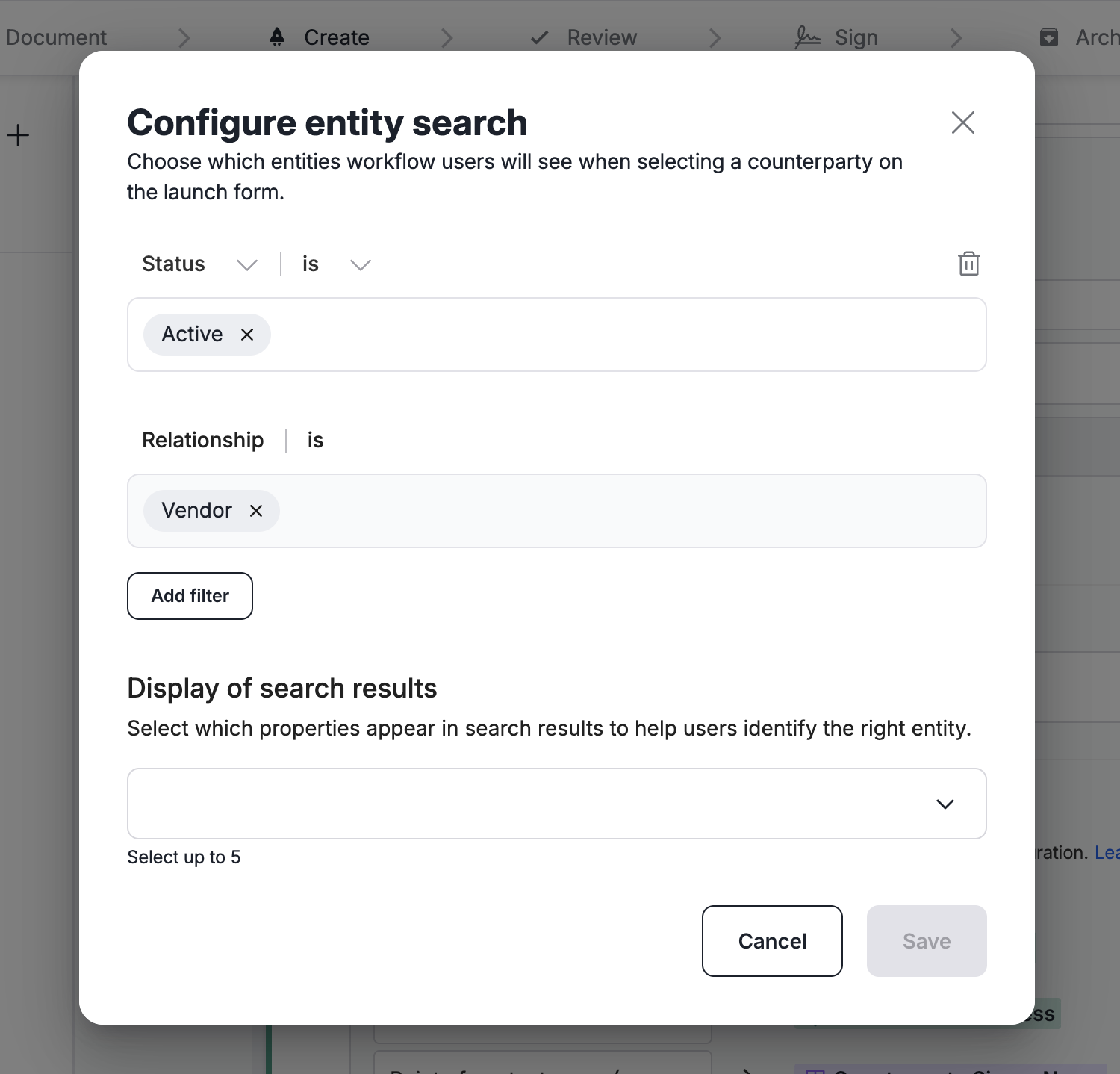
- Click on the Workflow Designer tab and select the workflow configuration you want to modify. Click on the Create tab.
- Locate and click on the entity launch form question. By default, the question is ‘who is the counterparty’.
- Click Configure search. The configure search window displays.
-
By default, workflows filter by Active status and any Relationship types defined on the question. For example, if you set the Relationship type to Partner, the question will only display entities classified as partners.
-
You can remove the Status filter to also include Inactive entities.
-
To add additional filters, click Add Filter, and then select the entity property you want to filter by from the dropdown. Filter options will vary based on the selected entity property.
-
Release: The following functionality will be live on July 23rd. To learn more about the features included in our July release, refer to What's New in Ironclad: July 2026.
You can display additional properties in the dropdown to help users identify the correct entity. Select them from the Display search properties dropdown. You can select up to five.
- When you are done adding and customizing filters, click Save.
Resources
Explore articles, courses, and support options to get the most out of Ironclad.